

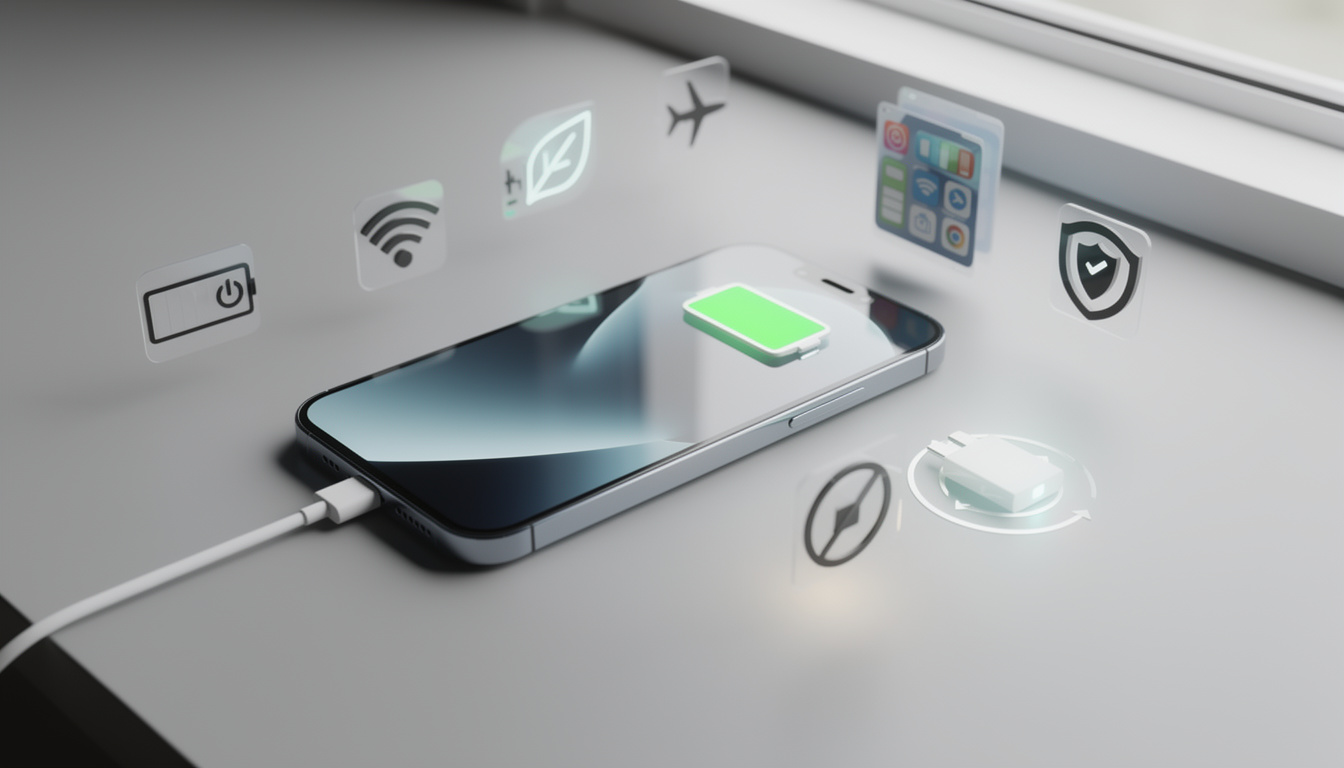
How to extend your phone’s battery life: 10 tricks that actually work, from screen tweaks to charging habits that can help your device last longer each day.
It usually happens at the worst moment. You check your phone before heading out, see a comfortable battery percentage, then watch it drop far faster than expected by midafternoon. For many people, that drain comes from a mix of bright displays, busy background apps, wireless radios, and heat, not just an aging battery. If you want to extend your phone’s battery life, the good news is that the biggest gains often come from settings already built into Android and iPhone. Recent guidance from ASUS, published on March 4, 2025, and ongoing platform advice from Apple and Google point in the same direction, small changes can add up.
How to extend your phone’s battery life with the display first
Your screen is usually the biggest power draw on any modern smartphone. That is especially true on large OLED or AMOLED panels running high brightness outdoors, high refresh rates, and always-on display features.
The fastest fix is simple, lower brightness to a comfortable level instead of leaving it maxed out. Adaptive brightness also helps because it adjusts to ambient light, which means your screen is not blasting unnecessary light in a dim room.
Dark mode can also help on OLED phones because black pixels consume less power. Based on the reported design direction of modern Android flagships and Apple’s use of OLED panels on premium iPhone models, this benefit is more noticeable on devices where each pixel lights individually.
One more setting matters more than many users think, screen timeout. If the display stays on for 2 minutes every time you glance at a message, that wasted time adds up over a full day.
Background apps are often why batteries fade by dinner
Open your battery usage page and the pattern often becomes obvious. Social apps, navigation tools, games, email clients, and streaming services can keep working long after you stop looking at them.
ASUS specifically recommends checking battery usage and restricting background activity for apps that do not need constant access. On Android, those controls are usually under battery or app settings. On iPhone, Background App Refresh and location permissions play a similar role.
This is also where app quality matters. Poorly optimized software can hit both performance and endurance, which is why monitoring tools and cleaner app design make a difference, especially for developers and power users following topics like mobile app performance tools.
A practical checklist helps here:
- Review battery usage once a week
- Restrict background activity for apps you rarely open
- Remove unused accounts that still sync in the background
- Turn off nonessential notifications that wake the screen constantly
- Update apps because patches often fix battery drain bugs
The goal is not to kill every process. It is to stop silent battery leaks before they become daily frustration.
Connectivity settings can extend your phone’s battery life fast
Bluetooth, GPS, NFC, 5G, Wi-Fi scanning, hotspot features, and weak cellular reception all take a toll. If your phone is constantly searching for a better signal, battery drain can spike even when the screen is off.
That is why one of the most effective habits is turning off what you do not need at that moment. Location access is a major example. Apps that rely on fences and proximity features can be useful, but continuous location polling is expensive, especially when tied to services explained in pieces like how geofencing works.
If you are in an area with terrible coverage, airplane mode can sometimes save more power than struggling through a weak connection. It sounds basic, but in real use it often works better than chasing a charger.
| Key detail | Why it matters |
|---|---|
| Adaptive brightness | Reduces one of the biggest daily battery drains without much effort |
| Background app limits | Stops hidden processes from using CPU, data, and location services |
| Battery saver mode | Cuts nonessential activity automatically when charge gets low |
| Certified charging accessories | Helps protect battery health and lowers heat-related stress |
| Keeping battery between 20% and 80% | Can reduce long-term wear compared with frequent full cycles |
Charging habits matter more than most people realize
Daily runtime is one issue. Long-term battery health is another, and the two are closely linked. Lithium-ion batteries age with heat, stress, and repeated extremes.
ASUS advises that keeping charge roughly between 20% and 80% is healthier than constantly draining to zero or topping off to 100%. Apple has pushed similar ideas through optimized charging features on iPhone, and many Android brands now offer bypass or smart charging options to reduce stress during gaming or desk use.
Heat is the real villain here. Charging under a pillow, gaming while plugged in, or leaving the phone in direct sunlight can all raise temperatures, which speeds up battery degradation over time.
Use a certified charger, avoid bargain accessories with questionable power regulation, and take the case off if charging makes the phone noticeably hot. That sounds mundane, but good charging habits are often what separates a battery that feels fine after two years from one that struggles by lunchtime.
Power-saving modes and software updates do real work
Battery saver modes are not magic, but they are useful because they automate the obvious cuts. They usually limit background sync, visual effects, refresh behavior, and sometimes processing speed.
Software updates matter for the same reason. ASUS noted in its March 2025 guidance that system updates can improve efficiency and battery behavior. Google and Apple also regularly ship patches that address app compatibility, modem performance, thermal controls, and idle power management.
If your phone suddenly starts draining after an update, wait for follow-up patches, then check app updates too. In many cases, the battery issue is not the operating system alone, it is an app that has not yet been tuned for the latest release, especially after major Android or iOS changes. Readers comparing broader platform trends can also look at DualMedia’s coverage of recent iOS beta features and Google’s mobile OS ecosystem.
A restart once a week can help too. It will not fix a worn-out cell, but it can clear minor software glitches that keep services running when they should be idle.
When fast battery drain points to a bigger problem
Sometimes the standard tricks are not enough. If the phone gets hot during light use, drops several percentage points while idle, or shuts down unexpectedly, the issue may be deeper than settings.
Check battery health tools if your device offers them. Review which apps use the most power. If the drain started after installing a specific game, VPN, launcher, or social app, remove it and test again. This is an inference based on common battery diagnostics across Android support guidance and manufacturer troubleshooting, not a one-size-fits-all rule.
There is also the hardware factor. By 2025, some devices stood out for endurance simply because they paired efficient chips with larger cells, a trend reflected in rankings like the best smartphone batteries in 2025. If your handset is several years old, replacement may be more sensible than endless tweaking.
And if all else fails, back up your data and consider a factory reset as a last resort. It is blunt, but it can remove software clutter that accumulated over months or years.
Frequently asked questions
Does dark mode really save battery?
Yes, mainly on OLED and AMOLED screens. Black pixels use less power on those panels, so dark mode can reduce draw, especially if you spend hours in messaging, email, or social apps.
Is charging to 100% bad for a phone battery?
Occasionally charging to 100% is not a crisis. The larger issue is doing it constantly while also exposing the phone to heat, which can increase long-term battery wear.
Should unused apps be closed all the time?
Not always. Force-closing everything can sometimes be counterproductive, but restricting background activity for problem apps is often effective.
Why does battery drain faster in poor signal areas?
Your phone works harder to maintain a cellular connection when coverage is weak. That increased radio activity can drain the battery surprisingly fast, even with light screen use.
How often should a phone be restarted?
About once a week is a reasonable habit for many users. It can clear minor glitches, reset stuck background tasks, and improve stability without much effort.
The bottom line
If you want to extend your phone’s battery life, start with the high-impact fixes, screen brightness, background activity, connectivity, charging habits, and battery saver mode. Those changes are simple, measurable, and backed by recent manufacturer guidance, including ASUS advice published in March 2025.
The bigger lesson is straightforward. Better battery life is rarely about one miracle setting. It comes from a handful of practical adjustments that reduce heat, cut waste, and help your phone work smarter throughout the day.
Want more tech and innovation coverage like this? DualMedia Innovation News tracks the technology shifts that actually matter, from AI to foldable hardware to the next wave of consumer products.
 EN
EN  FR
FR  ES
ES