

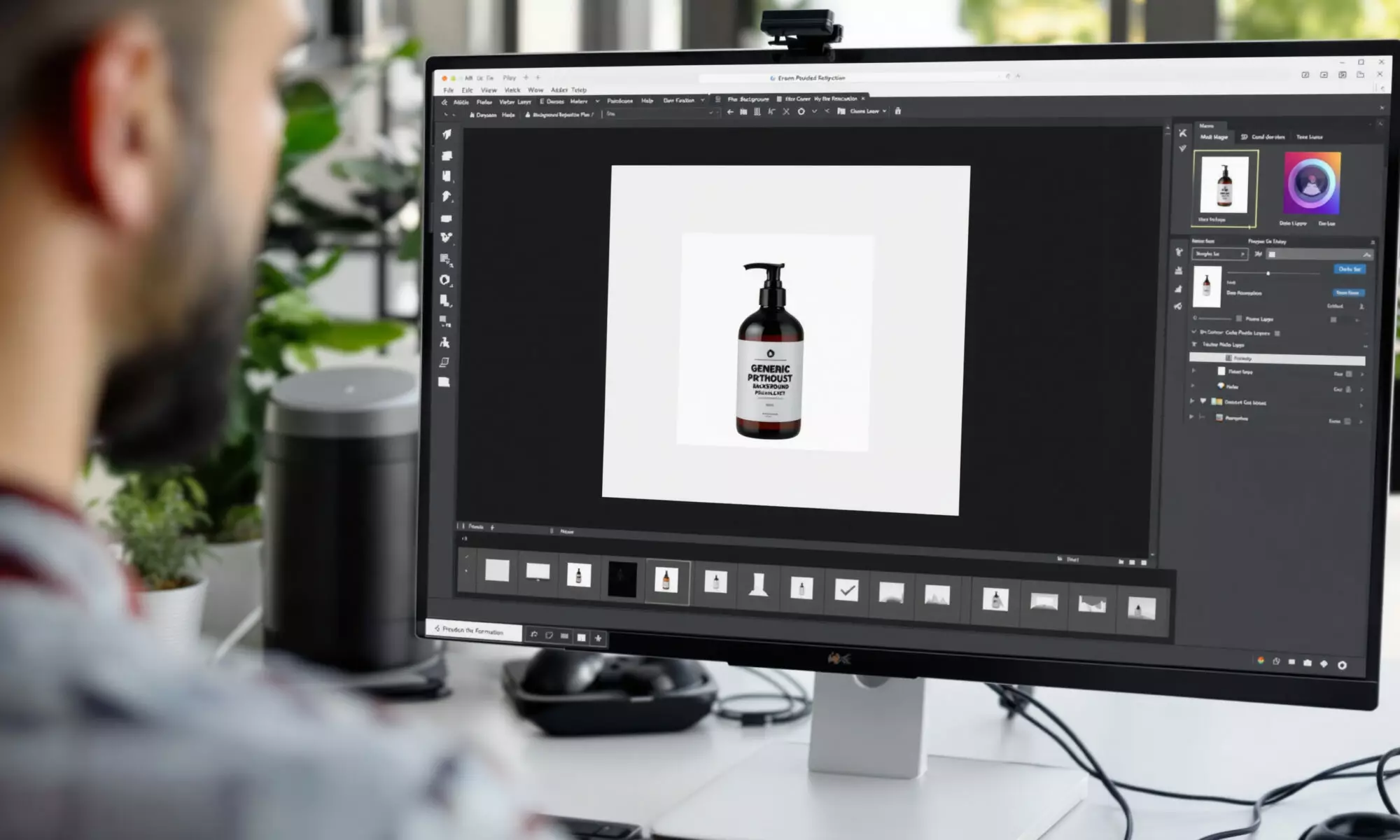
Canva’s AI Photo Editor lets you select, move, replace, erase, recolor, and resize image elements without leaving Canva’s design workspace. Launched with Visual Suite 2.0 on April 10, 2025, the editor reduces routine handoffs between photo software and layout tools. Its strongest 2026 features include Magic Grab, Magic Edit, Magic Eraser, Background Generator, and Magic Layers, though access limits and imperfect generated details still matter.
What is Canva’s AI Photo Editor?
Canva’s AI Photo Editor is an image-editing system that identifies visual elements and makes them directly editable inside Canva’s design workspace. According to Canva’s April 10, 2025 launch announcement, point-and-click controls can reposition, replace, remove, recolor, or resize detected subjects, reducing the need to rebuild an image in separate software.
The practical change is simple: a photograph behaves less like one flattened rectangle. You can click a person, product, or object, isolate it, and change the composition while the surrounding design remains available for editing. Canva introduced that integrated workflow as part of Visual Suite 2.0 in 2025.
Magic Grab handles object isolation. Canva’s 2026 help documentation says Magic Grab can separate an object so you can move, resize, or edit it independently while preserving the background. Magic Edit takes a different approach: you select an area, describe what should appear there, and let generative AI produce an addition or replacement.
For marketers already adapting creative production around generative systems, the editor fits a broader shift toward faster campaign iteration. Our analysis of AI’s influence on digital marketing in 2026 explains why shorter production cycles now affect content strategy as much as design execution.
How does Canva’s AI Photo Editor change design work?
Canva’s AI Photo Editor changes design work by combining image manipulation and page layout in one workspace. A designer can alter a photo, test a new crop, remove an object, generate a background, and place the revised image into a presentation or social post without exporting intermediate files between applications.
Fewer exports mean fewer opportunities to lose the latest version. A social media manager can duplicate a campaign page, reposition the product for a vertical format, replace distracting scenery, and preserve the original design for another channel. The work stays attached to the layout rather than becoming a trail of files named “final” and “final-2.”
Background Generator goes beyond a basic cutout. Canva said in its April 10, 2025 announcement that the feature creates replacement scenes while considering the subject, lighting, mood, and composition. That contextual generation can save time when one product photograph needs several campaign settings, although every output still needs a visual check.
A useful workflow has five stages:
- Duplicate the original Canva page before making a destructive-looking change.
- Select the object and use Magic Grab when the goal is repositioning or resizing.
- Use Magic Eraser for removal, or Magic Edit when replacement content is required.
- Generate or remove the background only after the subject’s final position is set.
- Inspect edges, shadows, reflections, text, hands, and fine product details at full size before publishing.
Honestly, the integrated approach makes the most sense for high-volume campaign assets, presentations, thumbnails, and ecommerce graphics. A painstaking beauty retouch or color-critical print job may still justify a dedicated pixel editor and a specialist’s eye.
Which AI photo-editing tools are available in 2026?
Canva’s AI Photo Editor includes five distinct editing approaches in 2026: object isolation with Magic Grab, prompted replacement with Magic Edit, object removal with Magic Eraser, contextual scene creation with Background Generator, and flat-image separation with Magic Layers. Each solves a different problem, so choosing the right tool prevents unnecessary generation attempts.
| Tool | Primary task | Best use | Documented limitation or access detail |
|---|---|---|---|
| Magic Grab | Isolates an object | Moving or resizing a subject | Preserves the background, according to Canva’s 2026 help page |
| Magic Edit | Adds or replaces selected content | Prompt-based visual changes | Can produce mismatched or pixelated areas, according to Canva’s 2026 help page |
| Magic Eraser | Removes unwanted objects | Cleaning distractions from a photo | Canva reported cleaner removals in May 2026 |
| Background Generator | Creates replacement scenes | Campaign variants and product settings | Unavailable on Canva Free under Canva’s 2026 pricing table |
| Magic Layers | Converts flat images into editable layers | Reworking generated or flattened art | Supports JPEG and PNG inputs in 2026 |
Magic Layers is the more consequential addition for people working with generated images. Canva said in 2026 that the feature can convert flat JPEG or PNG files from Canva AI, ChatGPT, Gemini, and other image generators into editable layers. Instead of regenerating an entire composition because one item sits in the wrong place, you may be able to separate and adjust that item.
Adoption was rapid by Canva’s own account. The company reported in 2026 that Magic Layers was used more than nine million times during its first four weeks. That company-supplied figure measures uses rather than unique users, but it still signals strong demand for turning static AI output into editable material.
Once a still image is ready, animation is a separate production decision. A guide to creating event recaps with image-to-video AI covers the next step without confusing photo editing with motion generation.
How much does Canva’s AI Photo Editor cost in 2026?
Canva’s AI Photo Editor has limited free access in 2026, while advanced background tools require a paid plan. Canva’s 2026 pricing page lists up to 20 monthly Standard or Premium AI uses for Canva Free and up to 200 Premium or 20 Ultra AI uses for Canva Pro, subject to task complexity and shared allowances.
The word “use” deserves attention. Canva says allowances can vary with task complexity and may be shared across AI features, so 200 Premium uses don’t necessarily equal 200 finished photo edits. If one finished asset requires three generations, a 200-use allowance yields at most about 66 complete assets, with two uses left over, before any retries elsewhere in Canva consume the pool.
Background removal and background generation are unavailable on Canva Free under Canva’s 2026 pricing table. Those exclusions matter more than the headline free allowance if your workflow depends on product cutouts or replacement scenes. Check the live plan page before purchasing because Canva can change plan packaging, regional prices, and feature allowances.
For occasional edits, 20 monthly uses can be enough. For a team producing daily campaign variants, shared limits can disappear quickly, especially when several prompts are rejected before a usable result appears. At that volume, track AI consumption for one representative week before deciding whether the workflow saves money.
Is Canva’s AI Photo Editor reliable enough for professional work?
Canva’s AI Photo Editor is reliable enough for drafts and many production graphics, but generated edits still require human review in 2026. Canva warns that Magic Edit may create mismatched lighting, color, or style, and edited areas can appear more pixelated than the rest of the photograph, especially around detailed boundaries.
The easily missed pitfall is visual continuity. A replacement object can look plausible by itself while casting the wrong shadow, reflecting an absent light source, or using a different depth of field. View the complete design at its intended output size, then zoom in to inspect the changed region.
Removal quality has improved. Canva reported in May 2026 that an upgraded Magic Eraser produced cleaner results with fewer residual shadows or reflections. “Fewer” doesn’t mean none, though. Glass, hair, patterned fabric, transparent objects, and overlapping limbs remain difficult cases for automated reconstruction.
Operational reliability also has limits. On September 17, 2026, Creative Bloq reported that Canva paused part of the Canva AI 2.0 rollout after unexpectedly high demand; co-founder Cameron Adams said re-engineering made the models five times faster and cut cost per task by almost 90%. Canva’s September 2026 guide, updated October 8, 2026, identified no separate new Photo Editor release.
My view: Canva’s editor is strongest when speed and layout integration matter more than pixel-level authorship. Keep the source photograph, duplicate important pages, and export a proof before replacing a published asset. AI editing can shorten production, but it doesn’t transfer accountability away from the person who approves the image.
Frequently asked questions
Can Canva turn a flat image into editable layers?
Canva Magic Layers can convert flat JPEG and PNG images into editable layers in 2026. Canva says the feature works with images created by Canva AI, ChatGPT, Gemini, and other image generators.
Can I remove an image background with Canva Free?
Canva Free does not include background removal or background generation under Canva’s 2026 pricing table. Both capabilities are listed with paid plans.
Does Canva Magic Edit replace objects from a text prompt?
Canva Magic Edit lets you select an image area or object and describe an addition or replacement with a text prompt. Canva’s 2026 guidance warns that generated areas may differ in lighting, color, style, or pixel quality.
What image formats does Canva Magic Layers support?
Canva Magic Layers works with JPEG and PNG images in 2026, according to Canva’s product announcement. The feature separates a flat composition into elements that can be repositioned or edited.