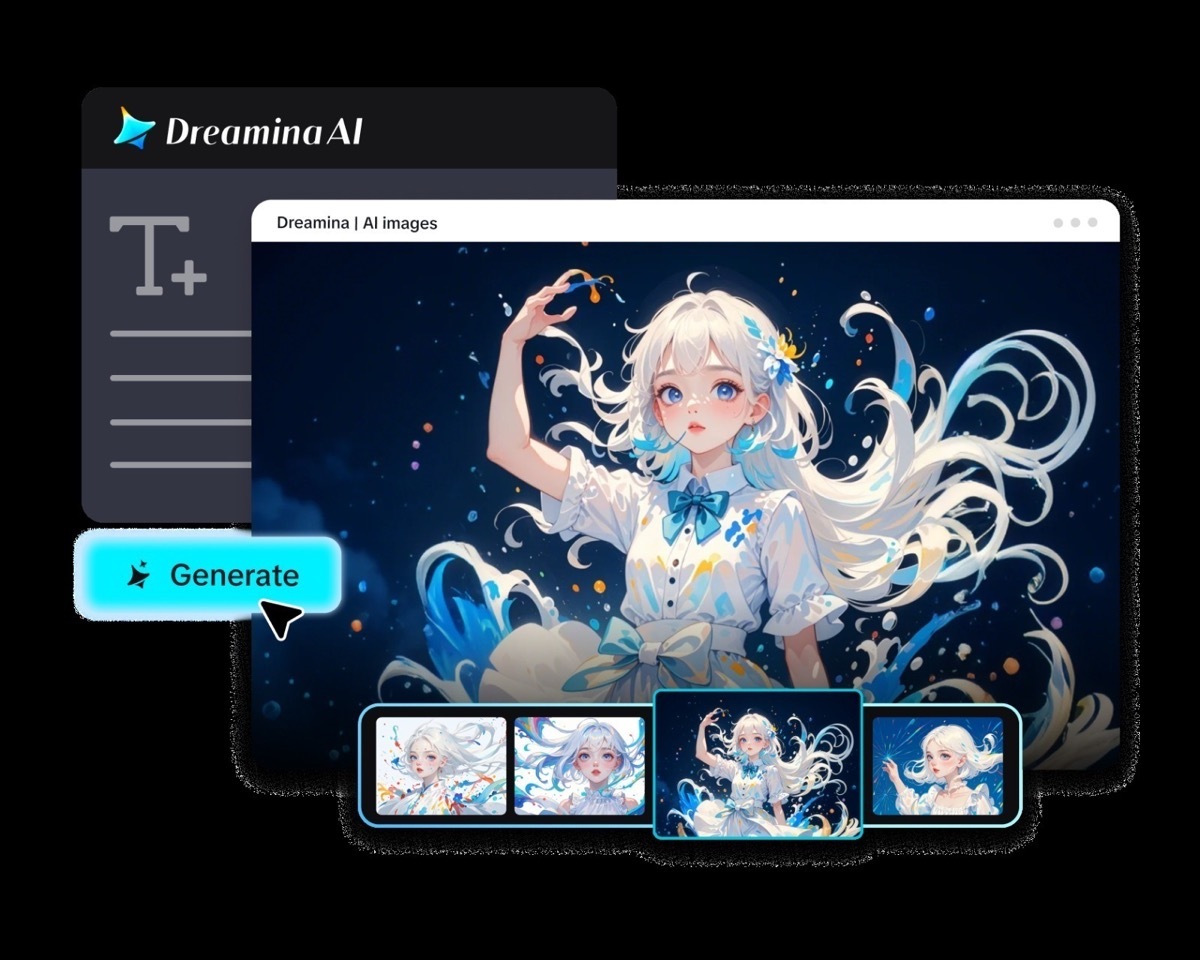
Of course, there are event photos that capture significant moments, but single images don’t necessarily convey the whole experience of an event. Dreamina AI takes appropriate photos, venue photos, invitations, and promotional artwork and converts them into animated visual content. Its Seedance models produce movement and camera effects from pictures and written creative directions. These features enable you to craft invitations, event promotions, and videos that recap the content using existing visual assets. Images are carefully chosen, prompts are clear, and audio is used appropriately to develop a more cohesive narrative. But the generated animation is an AI interpretation and not verified footage of historical events.
Choose the Right Event Images for Animation
Use clear, good images that convey the identity, mood, and purpose of the event. The Venue photos offer an architectural context for the slow camera moves and framing. Lighting, floral arrangements, decorations, and other significant visual features are emphasized in stage images. Speaker portraits enable restrained animation, where the facial features are still recognizable. Invitation graphics are great for animated invitations and save-the-date videos. Photos of the audience can be used to create atmosphere as long as there is no historical activity invented in the animation. Closing images convey celebration, appreciation, or the main message of the occasion. Always preview the quality, permissions, and intended motion of images before animation. To avoid misleading representations, differentiate between promotional art and real documentary photographs.
Design a Recap That Has a Beginning, Middle, and End
A unified summary should have a progression of the narrative, not a series of disjointed animated photographs. This free image to video generator workflow can be used to convert selected images to clips for this sequence. Start with the title of the event, theme, date, or location, using approved graphics. Use a subtle move of the camera to set the scene, and then show highlights. Then sequence documented performances, presentations, decorations, etc., and other relevant images in a logical order. Use different camera moves and transitions to keep viewers engaged without getting in the way. Use a meaningful highlight or verified message or branded closing frame. During the editing process, ensure that essential titles are added if the generated text looks unreliable. Read through the whole story to ensure that the story is accurate to the event.
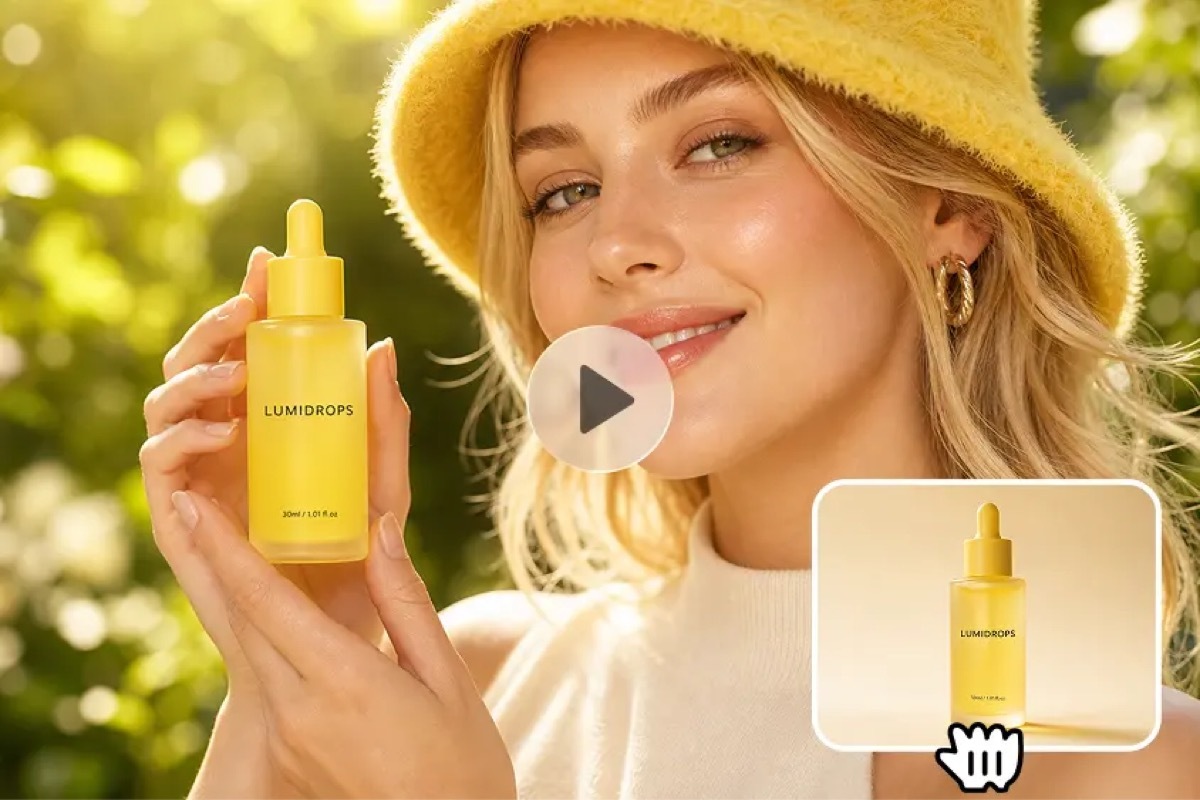
Steps to Make Highlights and Recaps Pop With Event Image to Video AI Maker
Step 1: Upload your event photo and write the recap prompt
-
Sign up or log in to Dreamina, then upload your favorite photo from the event.
-
Head to the “Create” tab in the left menu and click the “AI video” option.
-
Enter a detailed text prompt about how your event highlight reel should look and feel. Add video elements, theme, and concept, such as the venue, crowd, and overall celebration mood.
Step 2: Choose your model, tune the format, and generate
-
Now, choose a model from the options shown at the bottom of the dialogue box.
-
You can easily pick Dreamina Seedance 2.5, Dreamina Seedance 2.0, or Dreamina Seedance 2.0 Fast. Dreamina Seedance 2.0 Mini, Dreamina Seedance 1.0, and other models sit in the same menu.
-
Click “Omni reference” to guide the AI with multiple reference images for accurate video results.
-
Select your custom aspect ratio and resolution from the “Aspect ratio” and “Resolution” tabs here.
-
Finally, click the “Generate” tab to begin creating your event highlight video and recap clip.
Step 3: Edit your recap and download the final video
-
If the recap feels flat, you can “Edit prompt” or “Regenerate” to improve it quickly.
-
Fine-tune the generated video with the “Edit video” option to match your event’s overall style.
-
Use “Edit segment” to edit only part of the video, such as the opening shot.
-
Lengthen the best moment with “Extend video” if your highlight reel ends much too soon. Improve the video quality with “Creative upscale” so every face and small detail looks sharp.
-
Dreamina gives you complete freedom to edit your recap video the way you like it.
-
Finally, click the “Download” tab located on the top right side of the interface screen. Your event video file then saves on your local device for easy sharing with guests.
Six Creative Directions for More Engaging Event Videos
-
Atmospheric open: Bring to life a location shot with subtle lighting emphasis or controlled camera movement.
-
Stage reveal: Gradually pan or tilt without losing key signage and decorations.
-
Speaker introduction: Animate a portrait with a limited amount of movement (no implied speech out of the frame).
-
Celebration sequence: Incorporate appropriate movement with accepted celebration imagery and differentiate between created and captured movement.
-
Show transitions: Use camera moves to link chosen images in a consistent rate of movement.
-
Closing announcement: Conclude with event branding or thank you, test text positioning, readability.
Adapt Event Animations to Different Promotional Purposes
Prior to an event, use animated invitations, posters, venue previews, and announcements to provide information. Ensure dates, locations and themes are correct for all promotional material. Use approved photographs to create highlight clips that can be aired during an event but not as live coverage. Then arrange real photos by key events, performances, or main ideas. Add verified captions and appropriate closing messages during editing. Dreamina AI aids these diverse creative uses, and precise sequencing maintains their original meaning.
Coordinate Sound, Motion, and Event Branding
Music enhances the atmosphere at celebrations, conferences, exhibitions, and formal events. Dreamina provides audio features such as voice references and soundtrack tools (when possible). Test music, speech clarity, and synchronization individually prior to publication. Use the same logos, approved colours, font, and event names throughout the sequence. Check the footage for any signage, text, or visual changes that are not desired. Add necessary titles with the editing workflow when generated text needs to be corrected.
Check Accuracy, Permissions, and Final Presentation
Check out facts such as speaker names, event dates, locations, etc. before publishing. Ensure that pictures and supporting materials are used with proper permissions. When appropriate, differentiate between created animation and real recordings. Look at the whole sequence for transitions, framing, motion artifacts, and sound. Lastly, make sure the export format is compatible with the publishing platform.
Conclusion
Dreamina AI is a tool that can convert event photos and promotional artwork into engaging visuals. Purposeful movement and coherent sequencing with clear images result in more meaningful highlights and recaps. The history recorded in the event is maintained through careful editing to strengthen the presentation. All animation is aligned to its purpose with accurate information, appropriate permissions, and thoughtful finishing.