
How to set up passkeys on all your devices: Apple, Google, Microsoft
Passkeys are moving from security buzzword to everyday login tool, and that shift matters when your phone, laptop, and browser all need to stay in sync. If you have ever opened an app on a new device only to realize your saved passwords were missing, passkeys promise a cleaner experience. Apple, Google, and Microsoft now support them across major platforms, and the push has accelerated since the FIDO Alliance and the World Wide Web Consortium backed broader adoption in recent years. For regular users, the appeal is simple: fewer passwords to remember, fewer phishing traps to fall into, and faster sign-ins that use the device already in your hand.
How to set up passkeys on Apple devices
On Apple hardware, passkeys are tied closely to iCloud Keychain. To use them across an iPhone, iPad, and Mac, you first need iCloud Keychain turned on for the same Apple ID. Apple has documented this support across iOS, iPadOS, and macOS, and the company has been expanding passkey support since introducing it with iOS 16 in 2022.
On an iPhone or iPad, open Settings, tap your name, choose iCloud, then Passwords and Keychain, and make sure syncing is enabled. On a Mac, open System Settings, click your Apple ID, select iCloud, then confirm Passwords and Keychain is active. Once that is done, websites and apps that support passkeys will usually prompt you to create one during sign-in or account setup.
When a service offers the option, the device will ask for Face ID, Touch ID, or your passcode. That credential stays protected on your device, while the public part is shared with the service. The practical result is easy to feel, sign in with a glance or a fingerprint, not a memorized string.
What Apple users should check before relying on passkeys
If an Apple user has an older Mac running an outdated version of macOS, syncing may not work as expected. Apple’s support pages note that software versions matter, especially when devices sit across different generations. A mixed setup can still work, but it needs current updates.
There is also the recovery question. If someone loses access to a trusted Apple device and account recovery options are weak, getting back in can become stressful. That is why a backup plan still matters, and it is one reason rollout guides like this practical rollout plan for mobile apps are useful beyond enterprise teams.
Apple’s approach is smoothest inside its own ecosystem, but many homes are mixed. That is where Google’s model starts to matter.
How to set up passkeys on Google devices and Chrome
Google supports passkeys on Android and inside Chrome, with storage typically linked to Google Password Manager. On Android, open Settings, search for Password Manager, and confirm that saving and autofill features are enabled for the Google account you actually use day to day. Google has been promoting passkeys heavily since 2023, and support now spans Android phones, Chromebooks, and desktop Chrome.
Creating a passkey usually starts on a website or app that already supports it, such as a Google account or another FIDO-based service. After choosing the passkey option, Android will ask for your screen lock, fingerprint, or face unlock. Chrome can then use that saved credential on supported sites, often with a quick biometric prompt instead of a password box.
The key detail is sync. If you use multiple Android devices with the same Google account, passkeys can travel with you, but only if sync and screen lock protections are set up correctly. Convenience and device security are now part of the same package.
Where Google’s passkey setup can get confusing
Google’s ecosystem is broader than Apple’s, so there are more edge cases. A user might save a passkey in Chrome on one machine, then expect it to appear instantly in another profile or another browser. That does not always happen if accounts differ or sync is disabled.
A simple checklist helps avoid most problems:
- Use the same Google account on every Android device and Chrome profile that should share passkeys.
- Turn on screen lock with fingerprint, face unlock, or PIN, because passkeys depend on local device authentication.
- Update Chrome and Android before troubleshooting sync issues.
- Test on one service first, such as your Google account, before moving to banking or work tools.
That last step saves time. A small successful test often reveals whether the setup is sound before it matters on a high-stakes account.
Google’s method works well for many people, but plenty of office and home users still spend most of their day inside Windows. Microsoft has its own path.
How to set up passkeys on Microsoft and Windows devices
Microsoft supports passkeys through Windows Hello and has pushed passwordless sign-ins across consumer and business accounts. On a Windows 11 PC, the first step is to make sure Windows Hello is configured with a PIN, fingerprint reader, or facial recognition. Without that local authentication, passkeys lose their main advantage.
To check, open Settings, go to Accounts, then Sign-in options. Set up Windows Hello if it is not already active. After that, when a supported website or service offers passkeys, Windows can create one and tie it to your device login method.
Microsoft has also expanded support through Edge and Microsoft accounts, while the broader passkey standard remains rooted in FIDO specifications. Based on the reported design direction and the company’s passwordless strategy, the aim is clear: reduce the role of reusable passwords that phishing kits still target so effectively.
Why Windows Hello matters more than people think
Some users treat the Windows PIN as weaker than a password, but Microsoft has long argued that a device-bound PIN is safer when combined with hardware protections. The difference is structural. A stolen password can be reused remotely, while a Windows Hello credential is meant to stay tied to one machine.
That distinction matters when phishing attacks keep getting better. Anyone still weighing the shift should look at the real-world cost of credential theft and account takeover discussed in this overview of phishing impacts. Security gets practical fast when recovery starts eating into your week.
| Key detail | Why it matters |
|---|---|
| iCloud Keychain | Lets Apple passkeys sync across iPhone, iPad, and Mac using one Apple ID |
| Google Password Manager | Helps Android and Chrome users store and access passkeys across supported devices |
| Windows Hello | Provides the local biometric or PIN check that makes Microsoft passkeys usable |
| Device updates | Older software versions are a common reason passkeys fail to sync or appear |
| Recovery options | Backup access methods reduce lockout risk when a device is lost or replaced |
How to use passkeys across mixed Apple, Google, and Microsoft setups
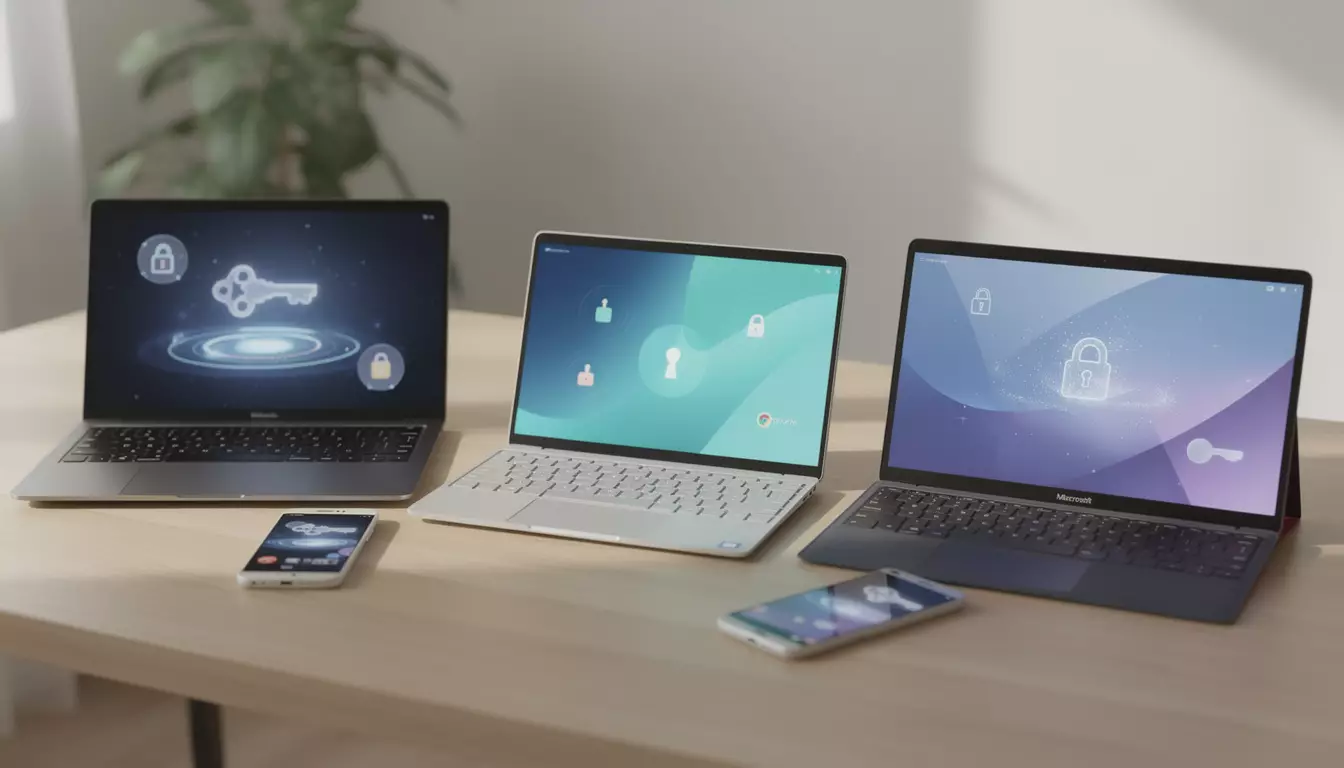
Most people do not live inside one brand anymore. A common setup might include an iPhone, a Windows laptop, and Chrome at work. Passkeys can still work in that mix, but cross-platform behavior depends on the service, the browser, and whether QR-code-based sign-in or nearby-device approval is supported.
In many cases, you can sign in on one device using a passkey stored on another. A website on a Windows PC may show a QR code, then ask you to approve sign-in with your iPhone or Android phone. This is an inference based on the FIDO cross-device flow and how Apple, Google, and Microsoft have implemented support in current browsers and operating systems.
That sounds slightly less magical than a universal vault, because it is. Still, for users juggling ecosystems, it is often the most practical bridge available right now.
How to avoid lockouts when switching from passwords to passkeys
Passkeys reduce risk, but they do not erase account recovery problems. Before replacing passwords everywhere, make sure each important account has updated recovery email addresses, phone numbers, and another trusted device when possible. This basic habit still matters in 2026, because identity recovery remains the weak point in many consumer services.
There is a lesson here from years of account support failures. People usually think about stronger login methods only after being locked out. A better routine is to secure your digital hygiene first, then expand passkeys gradually, much like the advice in these up-to-date cybersecurity habits.
If you are changing email providers or reorganizing old accounts, clean up your identity trail before turning on passkeys everywhere. Even simple tasks such as updating account contact details can save hours later, especially when paired with guidance like this Gmail address change guide. Security often improves through maintenance, not just new features.
Frequently asked questions
Are passkeys safer than passwords?
In most cases, yes. Passkeys are designed to resist phishing because there is no reusable password to steal and replay on a fake site.
Do passkeys work if you use Apple, Google, and Microsoft devices together?
They can, although the experience varies by browser and service. Cross-device sign-in often relies on a nearby phone, QR code approval, or synced credential storage tied to one ecosystem.
Can you still keep a password as backup?
Many services still allow that, at least for now. Keeping a backup during the transition is sensible, especially for financial, work, or primary email accounts.
What happens if a phone or laptop is lost?
You can usually recover access through another trusted device, account recovery methods, or a saved backup option. That is why updating recovery settings before adopting passkeys widely is so important.
What to watch next
How to set up passkeys on all your devices is becoming less of a niche security project and more of a basic digital skill. Apple, Google, and Microsoft now provide the essential tools, but the smoothness depends on your updates, sync settings, and recovery planning.
The next phase will be less about whether passkeys work and more about which services make them simple enough for everyone. The companies that get that balance right will shape how login feels for the next few years, and users will notice the difference one sign-in at a time.
Want more tech and innovation coverage like this? DualMedia Innovation News tracks the technology shifts that actually matter, from AI to foldable hardware to the next wave of consumer products.
 EN
EN  FR
FR  ES
ES